How to Install Downloader on Firestick and Fire TV
A Firestick will not install apps from a web link on its own, and that is exactly the gap Downloader fills. Most people in Ireland add it before anything else, because nearly every IPTV player starts with it. Expect about five minutes, and you only ever do it once.
Install Downloader on your Firestick, step by step
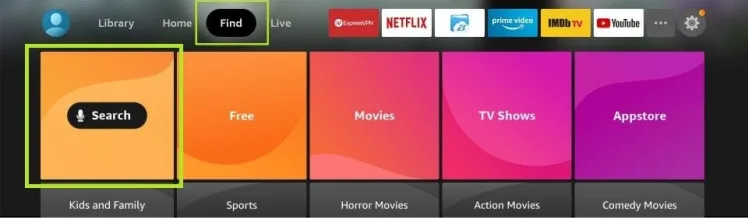
Step 1: Go to Find, then Search
On the Fire TV home screen, highlight Find and select Search.
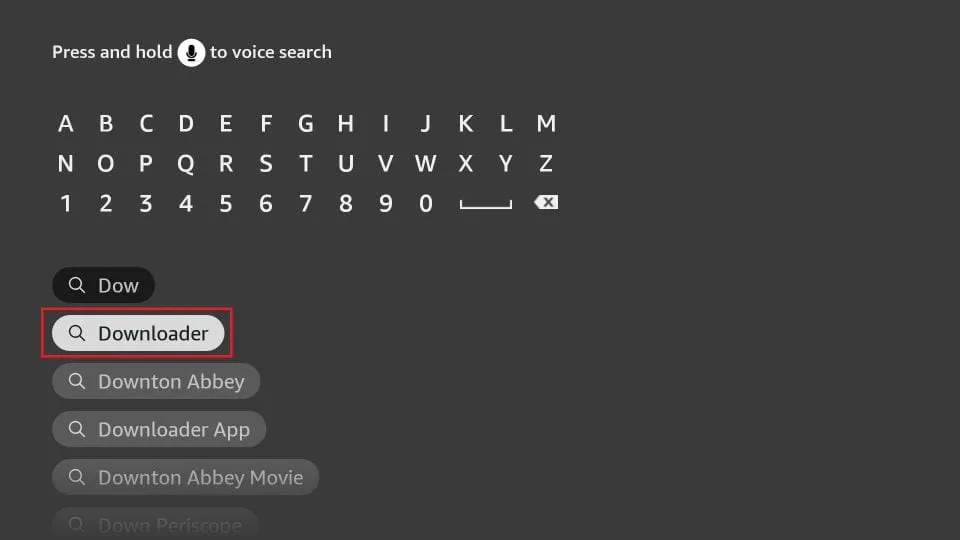
Step 2: Find Downloader and install it
Type Downloader on the on-screen keyboard and pick it from the suggestions. Open the orange Downloader app and press Get (or Download). It comes straight from the official Amazon Appstore.
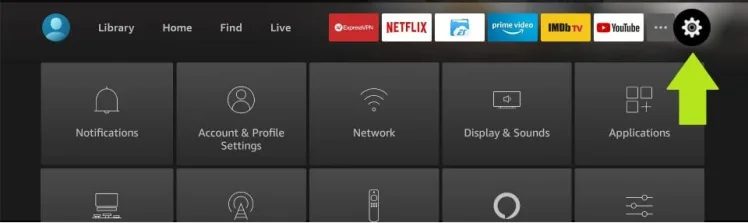
Step 3: Open Settings
Back on the home screen, select the gear icon at the end of the menu bar.
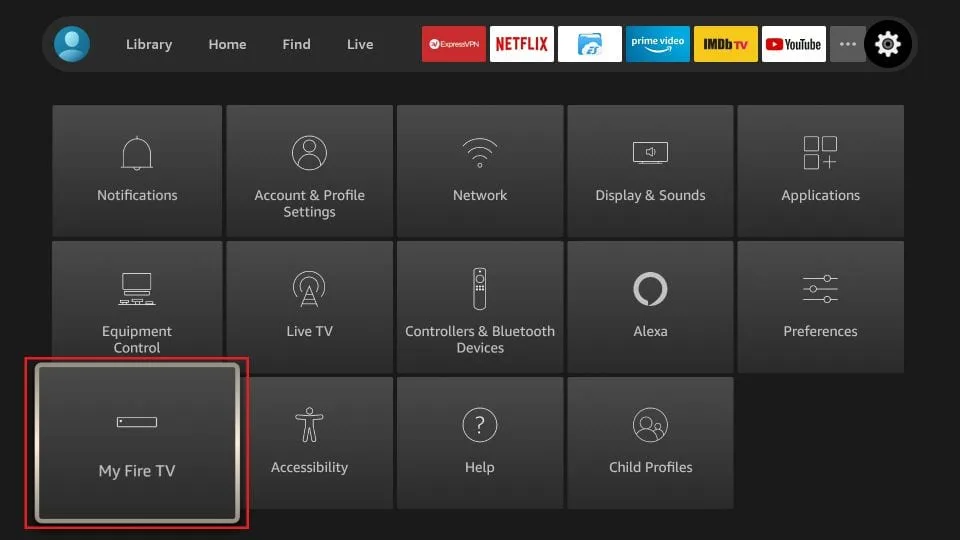
Step 4: Select My Fire TV
Choose My Fire TV. On some software versions it is called Device & Software.
Step 5: Open Developer options
Select Developer options. If it is missing, open About and press OK on your device name seven times quickly. When the "You are now a developer" message appears, press Back.
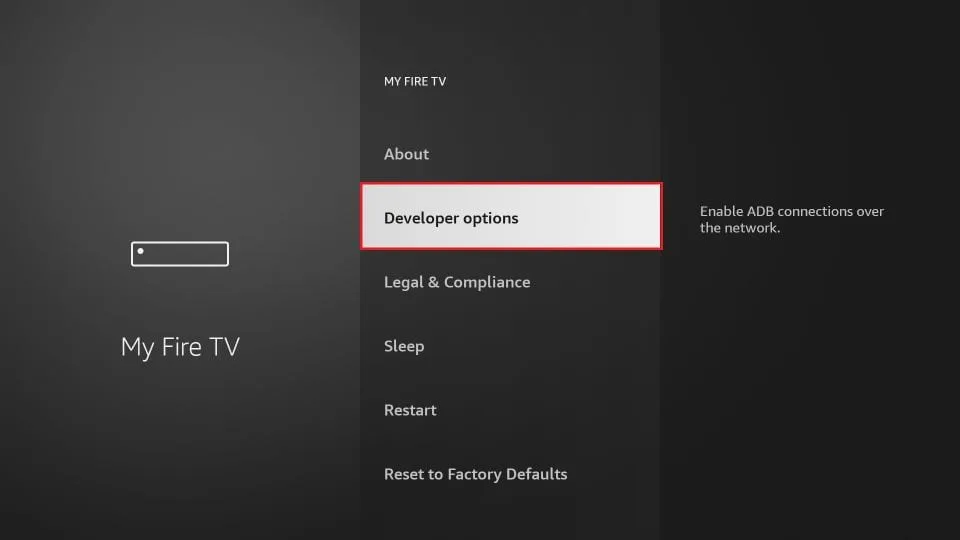
Step 6: Choose Install unknown apps
Open Install unknown apps. Older Fire TV software shows one switch called Apps from unknown sources instead.
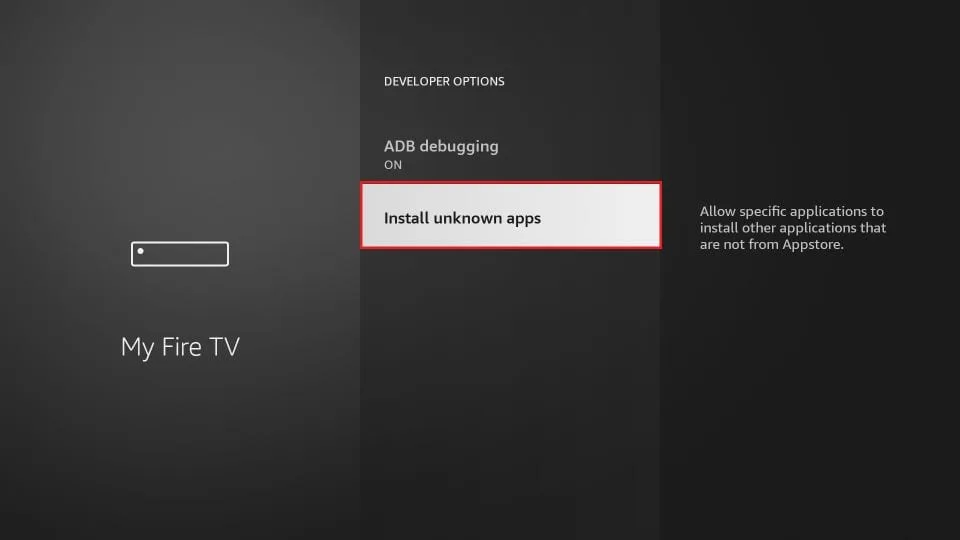
Step 7: Switch Downloader ON
Press OK on Downloader so it reads ON. Only Downloader gets this permission; the rest of your Fire TV stays protected.
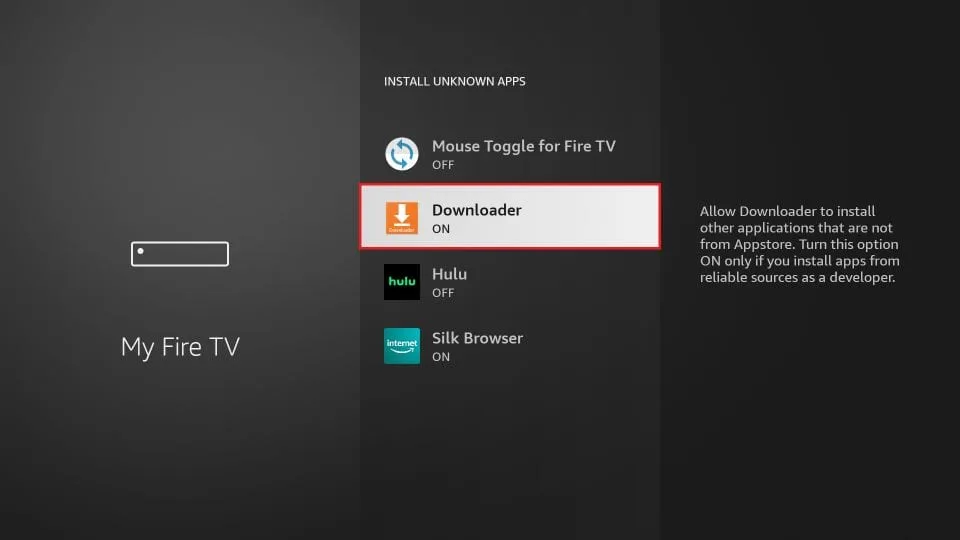
Step 8: Launch Downloader
Open Downloader from Your Apps & Channels. The first time, allow access to files and skip the welcome messages. You land on the Home tab with the address box, ready to go.
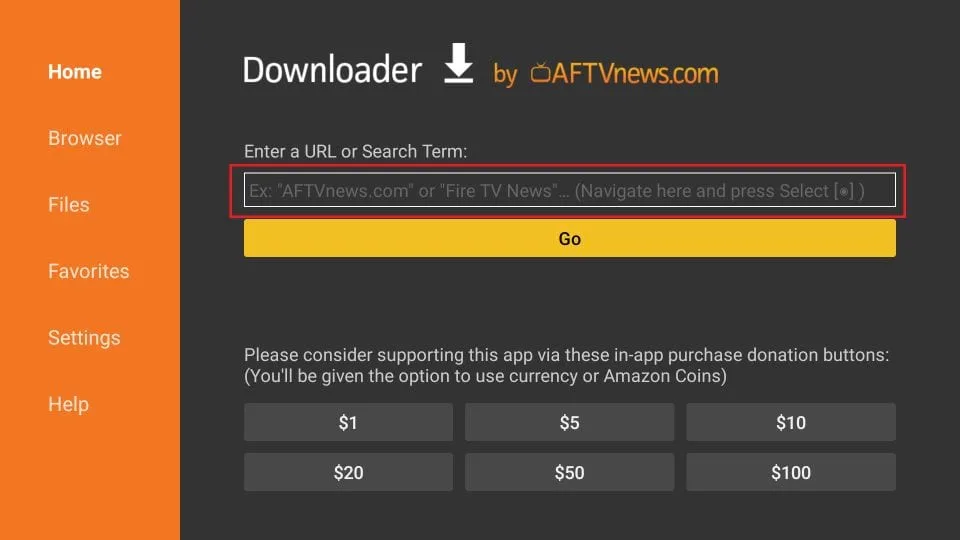
What to do next
Type an app's download address or code into the box and press Go. Downloader fetches the file and offers to install it. For a complete example, follow our guide to installing TiviMate on Firestick, or pick another player: Hot Player, IBO Player Pro, Flix IPTV or XCIPTV Player.
Downloader tips
- Stick to trusted addresses. Downloader installs whatever file you point it at, so take links and codes from the app's official source only.
- Switch the permission off afterwards. Once your apps are installed, you can set Downloader back to OFF in Install unknown apps.
A few habits that save trouble later
Downloader is just the doorway, but how you treat your Fire TV from here on decides how smooth everything else feels.
- Clear out old files. Each app you install leaves an APK behind in Downloader's Files tab. Delete them once the app is in, or an 8 GB Firestick fills up surprisingly fast.
- Mind where the stick lives. Plenty of Irish houses have thick walls between the router and the TV. If the Wi-Fi bar looks weak, a cheap Ethernet adapter fixes more problems than any setting.
- Restart before the big ones. A quick restart before a championship match or a Six Nations Saturday clears the memory and costs you ten seconds.
Downloader not working? Quick fixes
Most Downloader problems on a Fire TV have simple causes. Work through these before trying anything else:
- "Install unknown apps" is greyed out or missing: Developer options are hidden on newer Fire TV models. Go to Settings › My Fire TV › About and press OK on your device name seven times, then go back and the menu appears.
- The code or address will not load: check you typed it exactly, with no extra spaces, and that the Firestick is online. Restart the Fire TV and try again.
- "There is a problem parsing the package": the download did not finish. Delete the file in Downloader and download it again on a steadier connection.
- Not enough storage: open Downloader's Files tab and delete old APK files, then uninstall apps you no longer use.
Once Downloader works, your next step is a player such as TiviMate or IBO Player Pro.
Frequently asked questions
Is Downloader free and safe?
Yes. Downloader is free in the official Amazon Appstore. It is as safe as the files you download with it, so only use addresses from sources you trust.
I cannot find Developer options on my Firestick.
Go to Settings › My Fire TV › About and press OK on your device name 7 times quickly. Developer options then appears in My Fire TV.
Does this work on the Fire TV Stick 4K and Fire TV Cube?
Yes. The steps are the same on every Fire TV device: Firestick, Fire TV Stick 4K and 4K Max, Fire TV Cube and Fire TV smart TVs.
Why can I not use the Silk browser instead?
The Fire TV browser cannot install app files. Downloader is designed to fetch and install them.
Is Downloader all I need to watch TV?
No. Downloader only installs other apps. You still need a player such as TiviMate and a subscription to log in with.
Why is Install unknown apps missing on my Fire TV?
Developer options are hidden on newer models. Open Settings › My Fire TV › About and press OK on the device name seven times to show them.
Stuck on a step?
Send us a WhatsApp with a photo of your screen and we will tell you what to press next. You can also test everything free for 24 hours first. See the plans, from €9.99 a month.
Get a Free TrialKeep reading
How to Install TiviMate on Firestick and Fire TV
Get TiviMate running on your Amazon Firestick in about 10 minutes, with a screenshot for every click.
Read the guide →
How to Install Hot Player on Firestick, Fire TV and Android
Install Hot Player with code 395800 on Firestick, or from Google Play on Android, then add your playlist.
Read the guide →
How to Install IBO Player Pro on Firestick, Fire TV and Android
Install IBO Player Pro with code 481220, then link your playlist with your MAC address and Device Key.
Read the guide →