How to Install Hot Player on Firestick, Fire TV and Android
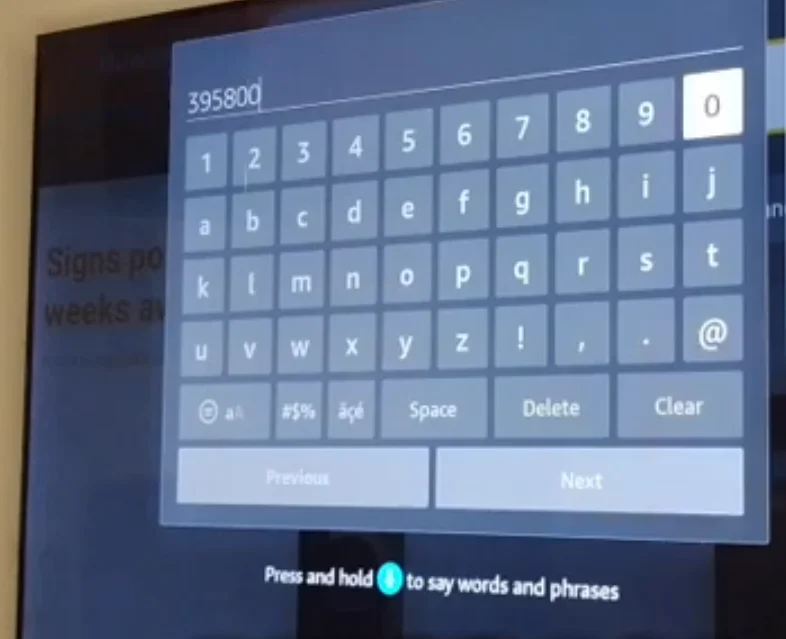
Setting up Hot Player comes down to two things: the Downloader code 395800 and the MAC address the app shows on its first screen. On an Android phone or Google TV you can skip Downloader and get it straight from Google Play. Both routes are below, followed by linking your 4K Empire playlist.
Before you start
- A Firestick, Fire TV, Android TV, Android box or Android phone with an internet connection.
- Your 4K Empire login: server URL, username and password, or an M3U link.
- A phone or computer to upload the playlist.
Install Hot Player on Android, Android TV and Android boxes
- Open the Google Play Store on your phone, Android TV or box.
- Search for Hot Player and select Install.
- Open the app, write down the MAC address shown at the bottom of the screen, then jump to step 7 below to upload your playlist.
Install Hot Player on Firestick and Fire TV
First time using Downloader? Our Downloader guide covers steps 1 and 2 in detail.
Steps 1 and 2: Get Downloader ready
Install Downloader from Find › Search on the Fire TV home screen, then switch it on under Settings › My Fire TV › Developer options › Install unknown apps. If you already did this for another app, skip straight to step 3.
Step 3: Open Downloader
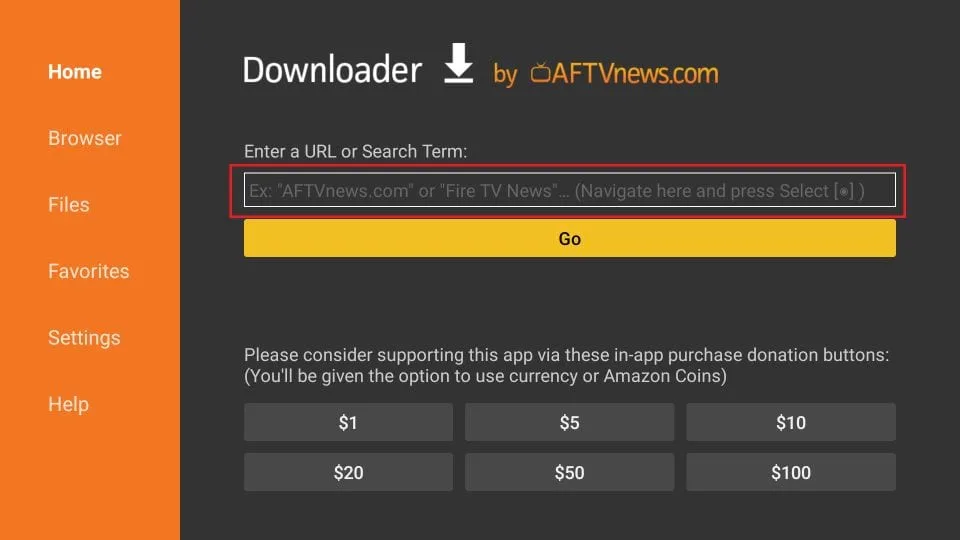
Launch Downloader, skip the welcome messages and select the address box on the Home tab.
Step 4: Type the Hot Player code
Enter the code below and press Go. Once the Hot Player file has downloaded, select Install, then Done.
Step 5: Open Hot Player
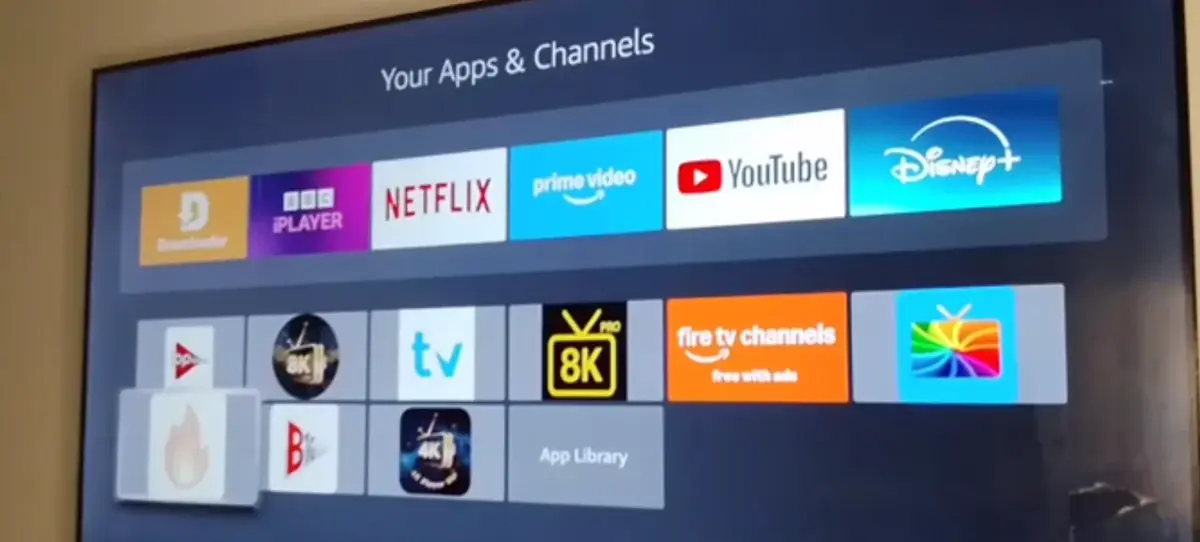
Hold the Home button and select Apps: Hot Player is now in Your Apps & Channels. Move it to the front row so it is always close by.
Step 6: Write down your MAC address
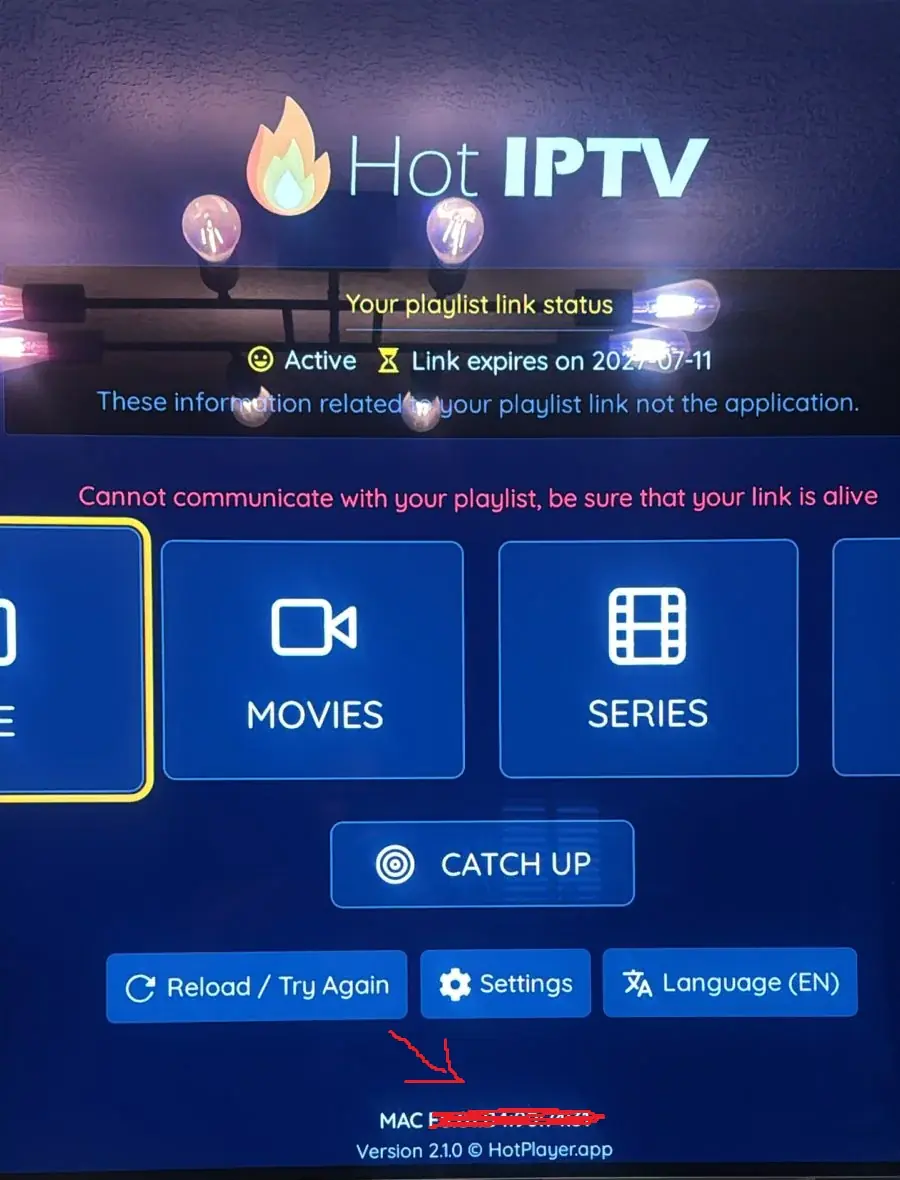
Open Hot Player. Your device's MAC address sits at the bottom of the home screen. Note it carefully: you need it to link your playlist.
Step 7: Upload your playlist
On your phone or computer, visit hotplayer.app/upload. Enter your MAC address and your 4K Empire details (server URL, username and password, or your M3U link) and save. On the TV, select Reload / Try Again and your channels, films and series appear.
Hot Player tips
- "Cannot communicate with your playlist"? Double-check the server URL on hotplayer.app/upload, make sure your subscription is active, then press Reload / Try Again.
- Copy the MAC address exactly. It mixes letters and numbers with colons; one wrong character links the playlist to another device.
- Buffering on match day? Use 5 GHz Wi-Fi or an Ethernet adapter, and restart your Firestick and router.
Using Hot Player on more than one TV
Hot Player ties your playlist to the MAC address of each device, which is worth understanding before you add a second TV.
- Each device has its own MAC. Putting Hot Player on the bedroom Firestick? Upload the playlist again with that stick's MAC address, shown on the Hot Player home screen.
- Check what your plan allows. Two devices playing at the same moment need a 2-device plan; taking turns on one plan is fine.
- Press Reload after any change on the upload website, otherwise the app keeps showing the old list.
Hot Player not showing your channels?
If Hot Player opens but your channels do not appear, close the app completely and open it again so it reloads the playlist. Check that the MAC address linked to your account is the one on the Hot Player home screen. On Firestick, clearing the app cache in Settings › Applications fixes most slow or frozen menus without losing your login.
Frequently asked questions
Is Hot Player on Google Play?
Yes. On Android phones, Android TV and Google TV boxes, search for Hot Player in the Google Play Store. On Firestick, install it with the Downloader app.
What is the Downloader code for Hot Player?
Type 395800 in the Downloader address box, press Go and install.
Where is the MAC address in Hot Player?
It is shown at the bottom of the Hot Player home screen, under the menu buttons.
How do I add my playlist to Hot Player?
Go to hotplayer.app/upload on your phone or computer, enter your MAC address and playlist details, save, then press Reload / Try Again in the app.
Can I use Hot Player on two TVs?
Yes. Upload your playlist once for each device using its own MAC address. If both play at once, you need a 2-device plan.
Stuck on a step?
Send us a WhatsApp with a photo of your screen and we will tell you what to press next. You can also test everything free for 24 hours first. See the plans, from €9.99 a month.
Get a Free TrialKeep reading
How to Install Downloader on Firestick and Fire TV
The first app every Firestick owner needs. Set it up once in about 5 minutes.
Read the guide →
How to Install TiviMate on Firestick and Fire TV
Get TiviMate running on your Amazon Firestick in about 10 minutes, with a screenshot for every click.
Read the guide →
How to Install IBO Player Pro on Firestick, Fire TV and Android
Install IBO Player Pro with code 481220, then link your playlist with your MAC address and Device Key.
Read the guide →