How to Install TiviMate on Firestick and Fire TV
TiviMate is the player a lot of Irish viewers end up keeping, mostly for its TV guide, which is the cleanest you will find on a Firestick. It is not in the Amazon Appstore, so you sideload it with Downloader and then log in with your Xtream Codes details. Give yourself ten minutes.
Part 1: Get the Downloader app on your Firestick
The Fire TV browser can't install apps by itself. That's where Downloader comes in: a free Appstore app that lets you install apps like TiviMate from a web address.
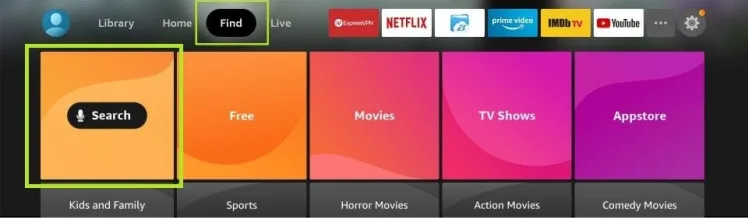
Step 1: Go to Find, then Search
On the Fire TV home screen, highlight Find and choose Search.
Step 2: Install Downloader
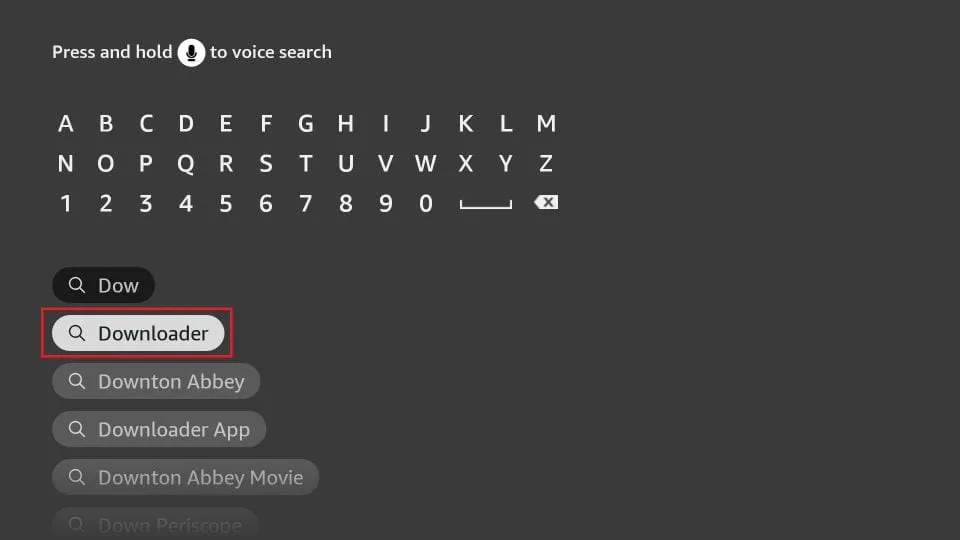
Start typing Downloader and pick it from the suggestions. Open the orange Downloader app page and press Get (or Download).
Part 2: Turn on developer options and allow unknown apps
By default, Fire TV only accepts apps from the Amazon Appstore. You change this setting once, and only for Downloader.
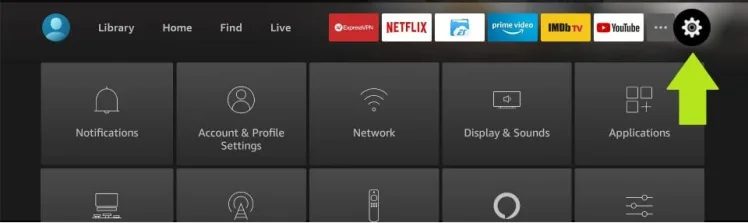
Step 3: Open Settings
Return to the home screen and select the gear icon at the far right of the top menu.
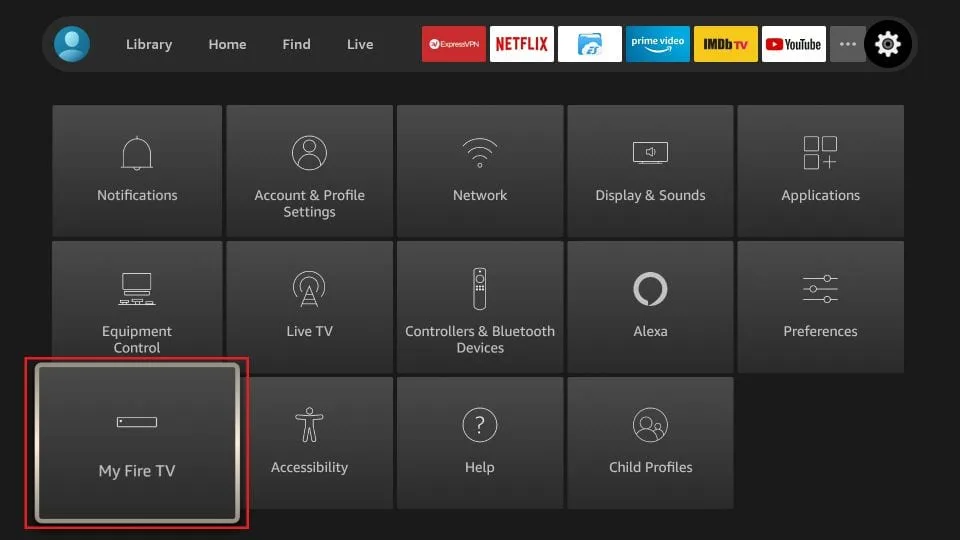
Step 4: Choose My Fire TV
Step 5: Open Developer options
Select Developer options. Don't see it? Go into About and press OK on your device name (for example "Fire TV Stick 4K") seven times in a row. When "You are now a developer" appears, press Back and the option will be there.
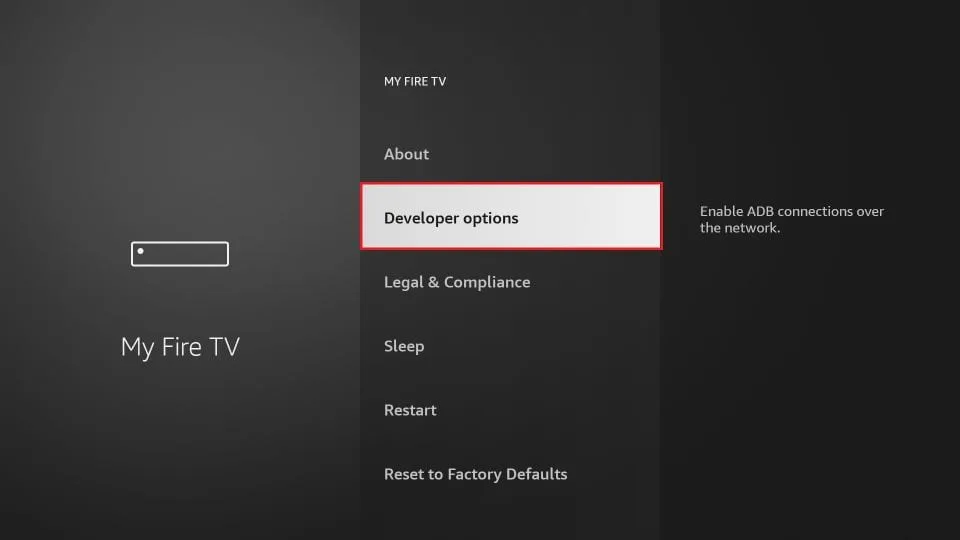
Step 6: Select Install unknown apps
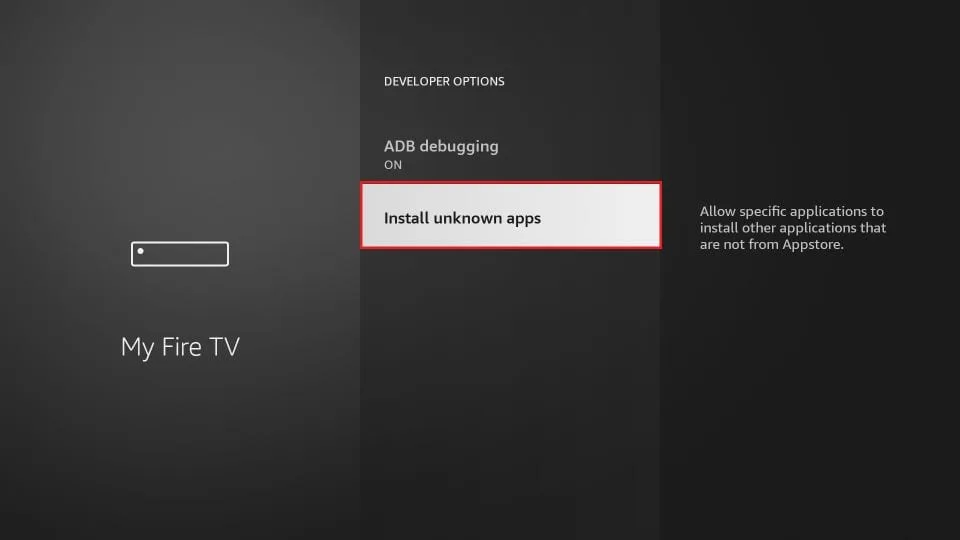
Step 7: Switch Downloader to ON
Press OK on Downloader so it reads ON. Only Downloader gets permission to install apps; the rest of your Fire TV stays locked down.
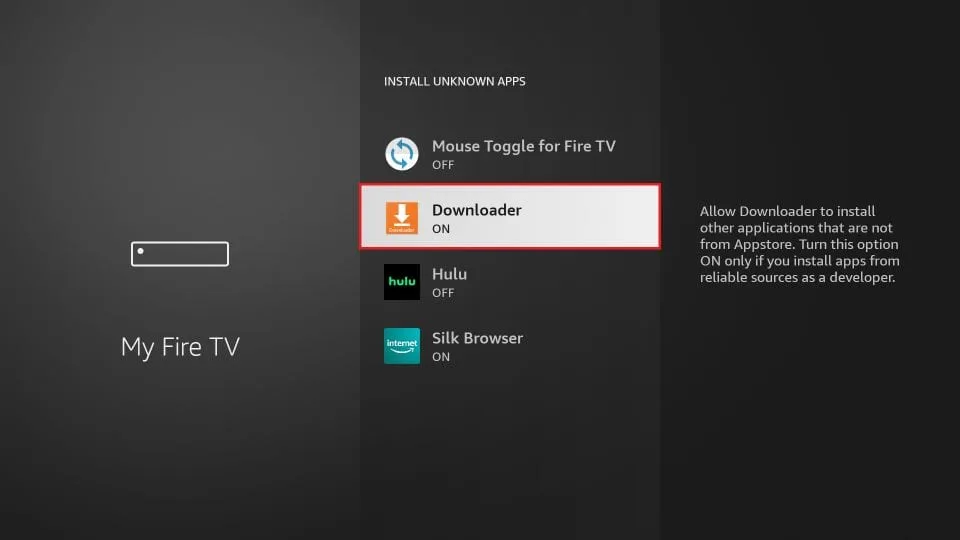
Part 3: Download and install TiviMate
Step 8: Launch Downloader
Open Downloader and skip through the welcome messages. On the Home tab, select the address box.
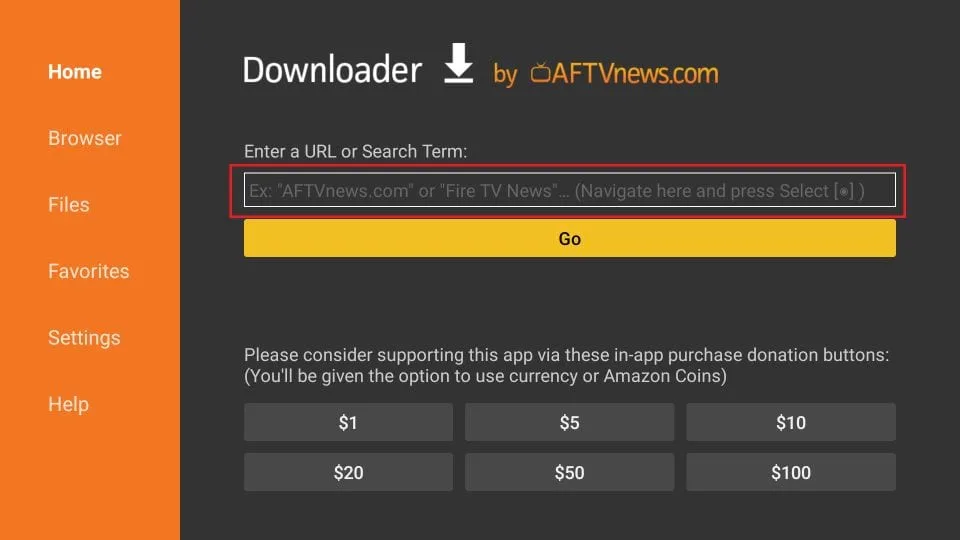
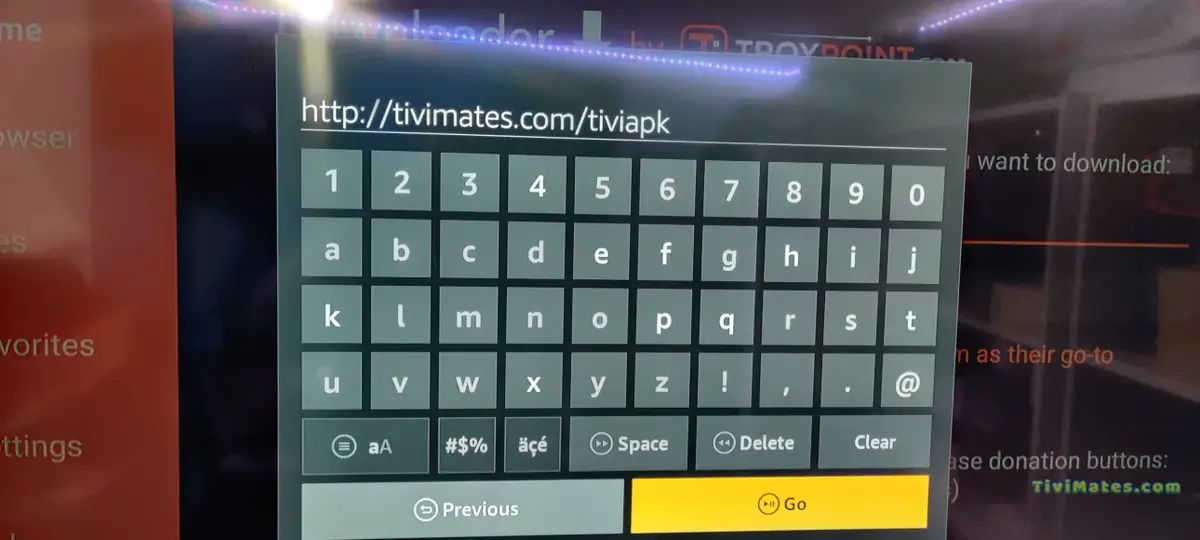
Step 9: Type the TiviMate download address
Enter the download address listed on the official TiviMate website, letter for letter. Press Go, let the file finish downloading, then choose Install.
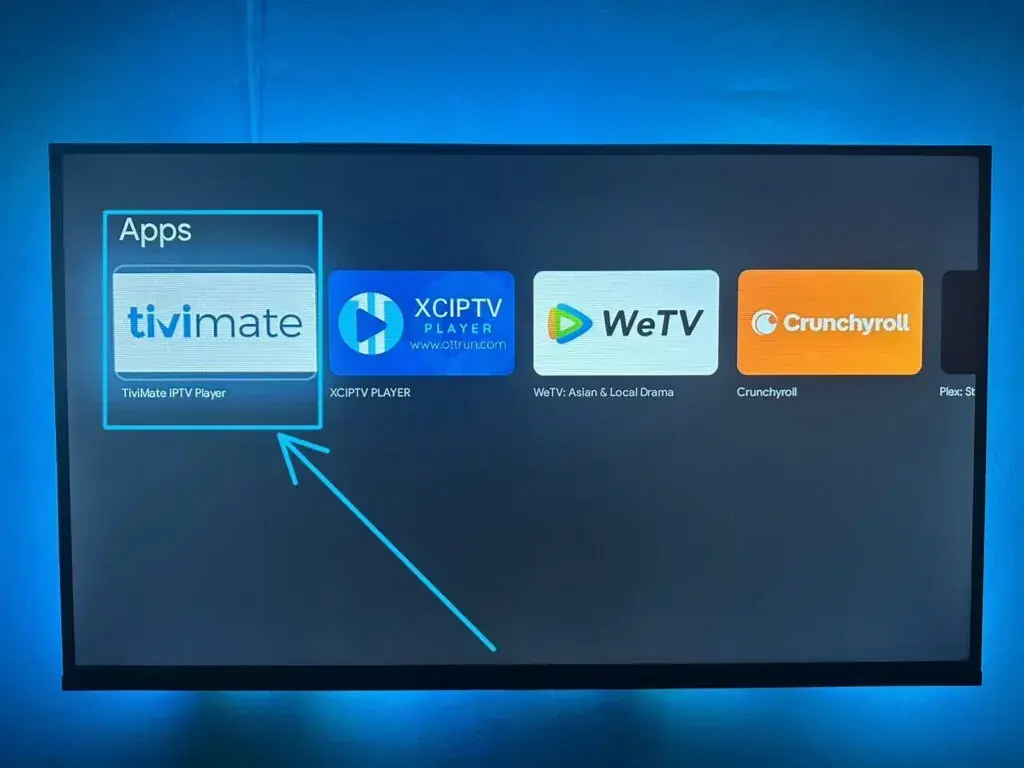
Step 10: Open TiviMate
Hold the Home button, choose Apps and launch TiviMate IPTV Player. Tip: move it to the front of your apps so it's one click away next time.
Part 4: Log in to TiviMate with Xtream Codes
TiviMate is just a player, so it has no channels of its own. You add the playlist from your IPTV subscription.
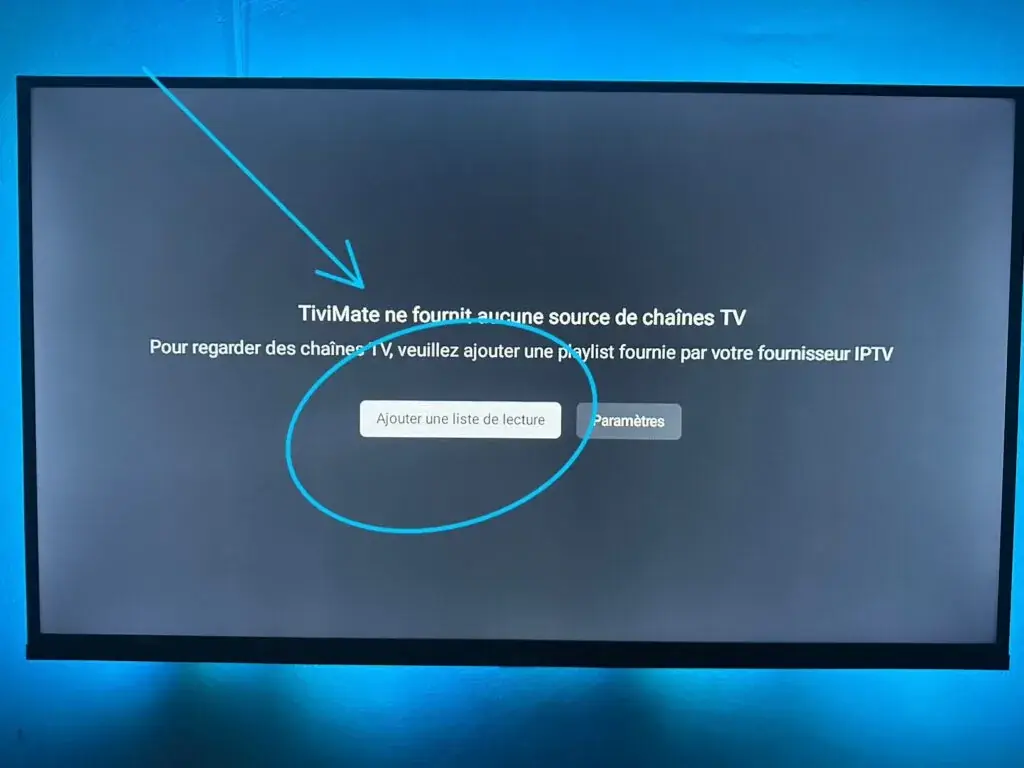
Step 11: Choose Add playlist
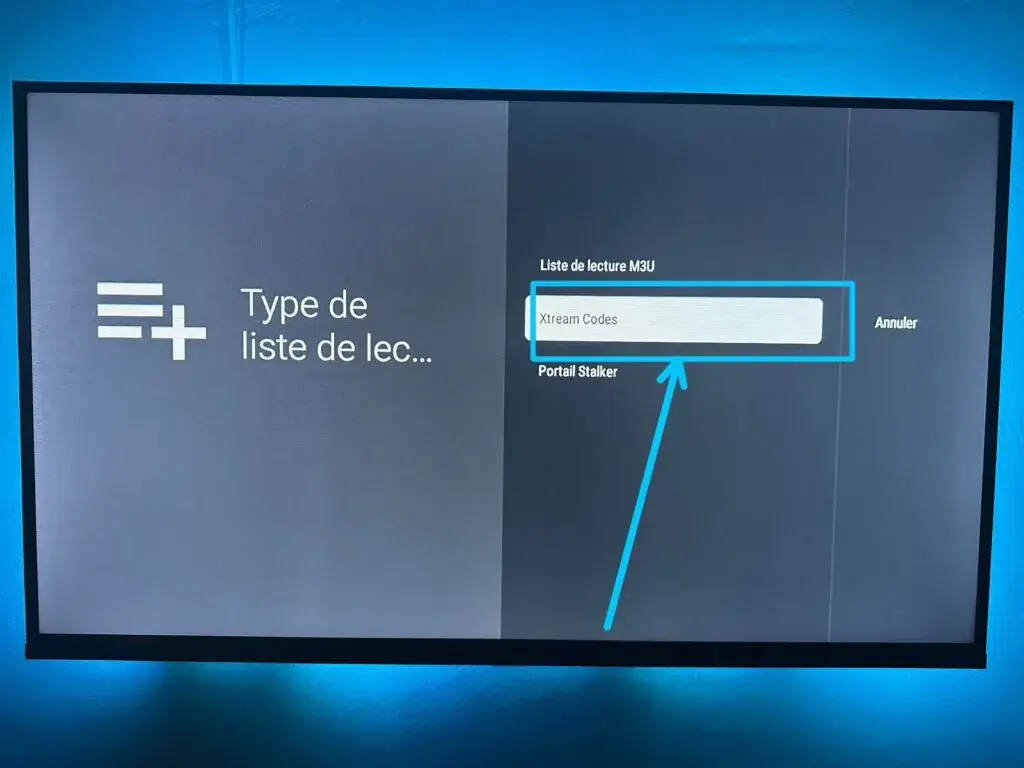
Step 12: Pick Xtream Codes
Select Xtream Codes: it brings in the TV guide (EPG), movies and series automatically. If you only received one long link, pick M3U playlist instead.
Step 13: Enter your details
Fill in the server address, username and password from your 4K Empire welcome message. Keep Include VOD ticked for movies and series, then press Next and Apply. Your channels and guide load in under a minute.
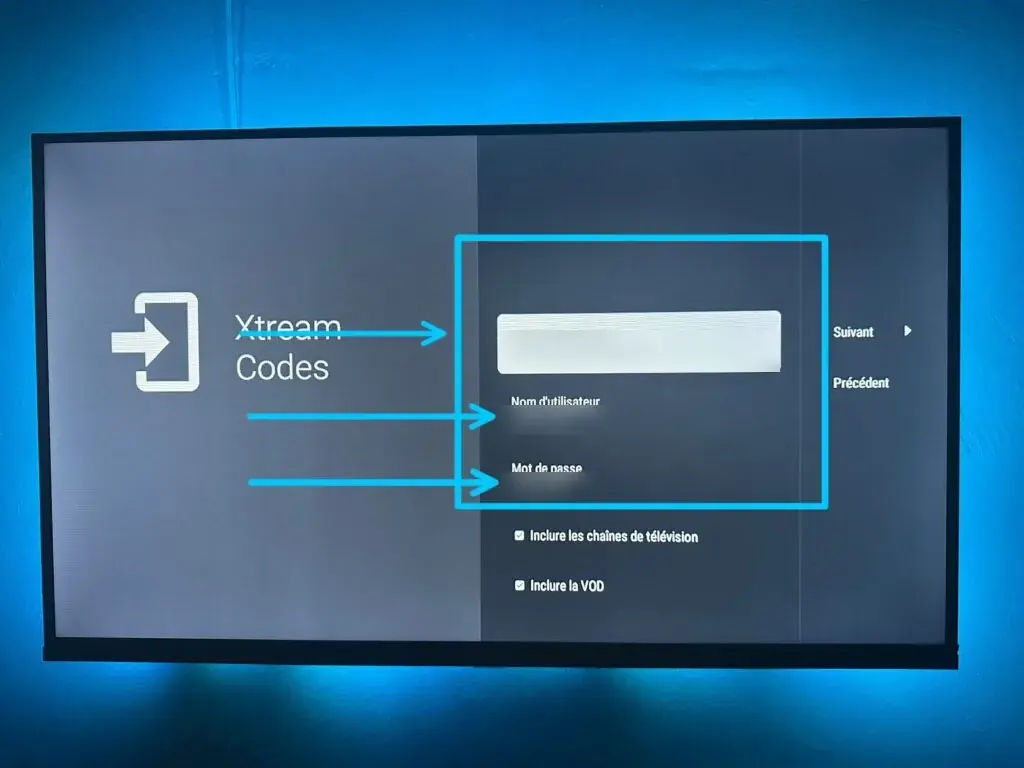
http:// rather than https://, and one wrong character is enough to block the login.Getting the most out of TiviMate
Once your playlist is in, these small tweaks make TiviMate feel like your own.
- Build a favourites list. Long-press OK on a channel and add it to Favourites. Most households end up with ten or fifteen channels they actually use, and having them at the top saves a lot of scrolling.
- Check the clock. If the guide is an hour out, set your Fire TV time zone to Dublin. It usually goes wrong after the clocks change in March or October.
- Refresh the playlist now and then. Settings › Playlists › Update brings in new channels and films without logging in again.
- Try catch-up. On channels that support it, press left on the guide to watch something you missed earlier in the week.
Frequently asked questions
Can I get TiviMate from the Amazon Appstore?
No, TiviMate is not in the Amazon Appstore. On Firestick you install it with the Downloader app (sideloading). On Android TV and Google TV it is available in the Google Play Store.
Is TiviMate free?
The standard player is free. TiviMate Premium adds features such as several playlists, recording and catch-up, and is purchased through the official TiviMate Companion app.
Does TiviMate come with TV channels?
No. TiviMate only plays content. You need an IPTV subscription and add it with Xtream Codes or an M3U link.
Why is TiviMate buffering on my Firestick?
Connect to 5 GHz Wi-Fi or use an Ethernet adapter, close apps running in the background, and restart both your Firestick and your router.
Can TiviMate show programmes I missed?
Yes, on channels that support catch-up. Open the TV guide and go back in time on that channel to play an earlier programme.
Stuck on a step?
Send us a WhatsApp with a photo of your screen and we will tell you what to press next. You can also test everything free for 24 hours first. See the plans, from €9.99 a month.
Get a Free TrialKeep reading
How to Install Downloader on Firestick and Fire TV
The first app every Firestick owner needs. Set it up once in about 5 minutes.
Read the guide →
How to Install Hot Player on Firestick, Fire TV and Android
Install Hot Player with code 395800 on Firestick, or from Google Play on Android, then add your playlist.
Read the guide →
How to Install IBO Player Pro on Firestick, Fire TV and Android
Install IBO Player Pro with code 481220, then link your playlist with your MAC address and Device Key.
Read the guide →