How to Set Up IPTV on Android TV, Android Box and Phone
Android is the easy one. Whether it is a Sony TV, a Google TV dongle, a budget box or your phone, the player comes from the Google Play Store, so there is no sideloading. Install, log in, watch: about five minutes on any of them.
Which Android device do you have?
The setup is nearly identical everywhere. What changes is how you move around: your finger on a phone, the remote on a TV.
| Device | Controlled with | Where to get the IPTV app |
|---|---|---|
| Android phone or tablet | Touchscreen | Google Play Store |
| Android TV / Google TV (Sony, Philips, TCL, Hisense, Xiaomi TV Box, Nvidia Shield) | TV remote | Google Play Store (TV edition) |
| Standard Android box (phone-style Android) | Remote, air mouse or USB mouse | Google Play Store (phone edition) |
Quick check: if your home screen shows large rows of movies and TV apps, you have Android TV or Google TV. If it looks like a phone with small icons, it's a standard Android box.
IPTV on an Android phone or tablet
- Open the Google Play Store.
- Search for your IPTV player and tap Install.
- Launch the app and enter your login (see Adding your IPTV login).
- Once the channel list appears, tap any channel to start watching.
IPTV on Android TV and Google TV
This part covers smart TVs running Android TV or Google TV and boxes such as the Xiaomi TV Box S, the Nvidia Shield and Chromecast with Google TV.
- Press Home on the remote and open the Google Play Store.
- Look for an IPTV player made for TVs, such as TiviMate, and select Install.
- Open it and add your login. Many players let you type the details on your phone or scan a QR code, which is far quicker than typing with the remote.
- Wait a few seconds for channels and the TV guide (EPG) to load, then choose a channel.
IPTV on a standard Android box
Lots of budget boxes run the phone version of Android. Apps install the same way, but they look like phone apps on your TV.
- Open the Google Play Store from the box's app list.
- Search for your IPTV player and select Install.
- Launch the app and add your login.
- If a button is hard to reach with the remote, plug in an air mouse or a USB mouse.
Planning an upgrade? A certified Google TV box runs more smoothly and receives regular updates.
Adding your IPTV login
Every IPTV player accepts one of two login types. Use the one included in your 4K Empire welcome message:
| Login type | What you type | Why use it |
|---|---|---|
| Xtream Codes | Server URL, username, password | Brings in the TV guide, movies and series automatically |
| M3U playlist | A single long link | Accepted by almost every player |
Copy each detail exactly: capital letters count, and even an extra space at the end will make the login fail.
Android tips worth knowing
- Watch your mobile data. Live TV on a phone uses a lot of it, roughly a gigabyte or more an hour in HD, so stick to Wi-Fi when you can.
- Set the time zone to Dublin in Android settings, so the guide lines up with what is actually on.
- Use the box's network port. Most Android TV boxes have one, and a cable beats Wi-Fi every time.
- Let Google Play update the player automatically; most playback fixes arrive that way.
Frequently asked questions
What is the difference between Android TV and a regular Android box?
Android TV and Google TV are designed for the big screen and a remote, with a TV edition of the Play Store. A regular Android box runs phone-style Android, so apps look like phone apps and some work better with a mouse.
Can I use one IPTV login on my phone and my TV?
Usually yes, but check how many connections your plan includes. Watching on two screens at the same time needs a multi-screen plan.
Can I cast IPTV from my phone to my TV?
Yes, when the player supports Chromecast and your TV has Chromecast built in. An app installed on the TV itself is usually more stable.
My IPTV app is not in the Play Store on my TV. What should I do?
Some players are made only for phones. Choose a player built for Android TV instead, such as TiviMate.
Can I watch on my phone when I am out?
Yes. Install a player from Google Play, log in with the same details and watch on Wi-Fi or mobile data. Keep an eye on your data allowance.
Not sure your device is up to it?
Tell us on WhatsApp what you are watching on and we will say honestly whether it will cope. The 24-hour free trial lets you check for yourself. See the plans, from €9.99 a month.
Get a Free TrialKeep reading
How to Watch IPTV on Apple TV, iPhone and iPad
No browser and no sideloading on Apple TV? No problem. Set it up from the App Store in 5 minutes.
Read the guide →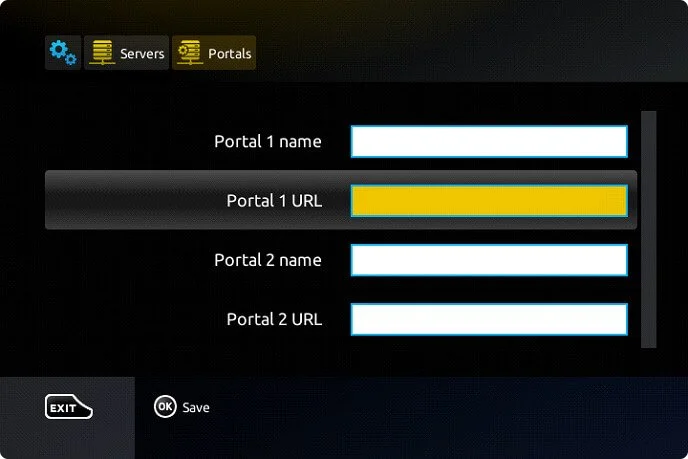
MAG Box Portal Setup: How to Add IPTV to a MAG Box
Add your IPTV portal to a MAG 322, 324, 420 or 524 in about 5 minutes, step by step.
Read the guide →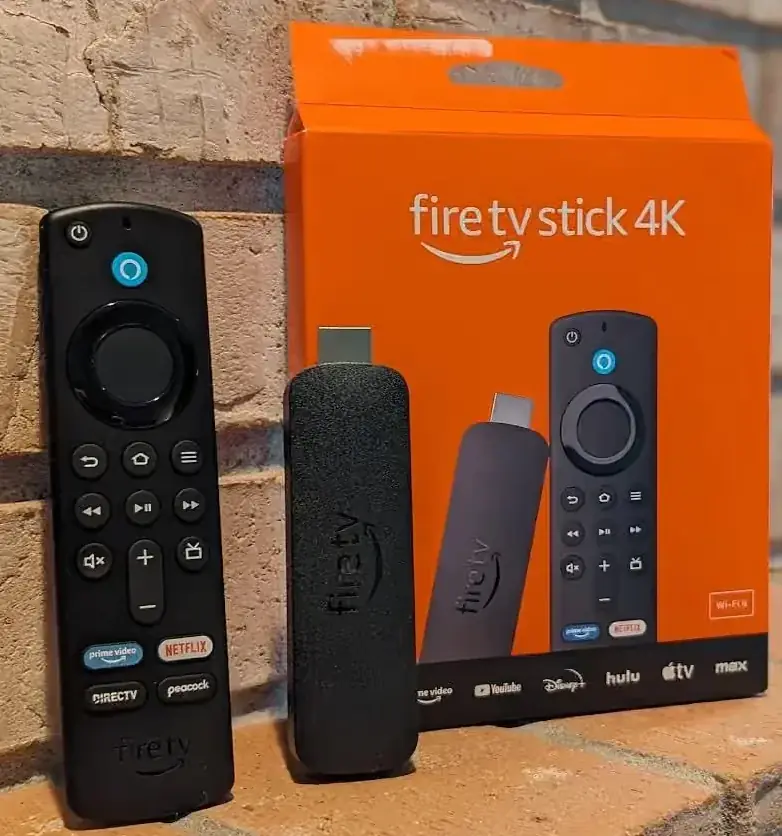
The Best Android Box for IPTV in Ireland
Smart TV missing your IPTV app? Compare the Xiaomi TV Box S, Fire TV Stick 4K and Nvidia Shield.
Read the guide →